
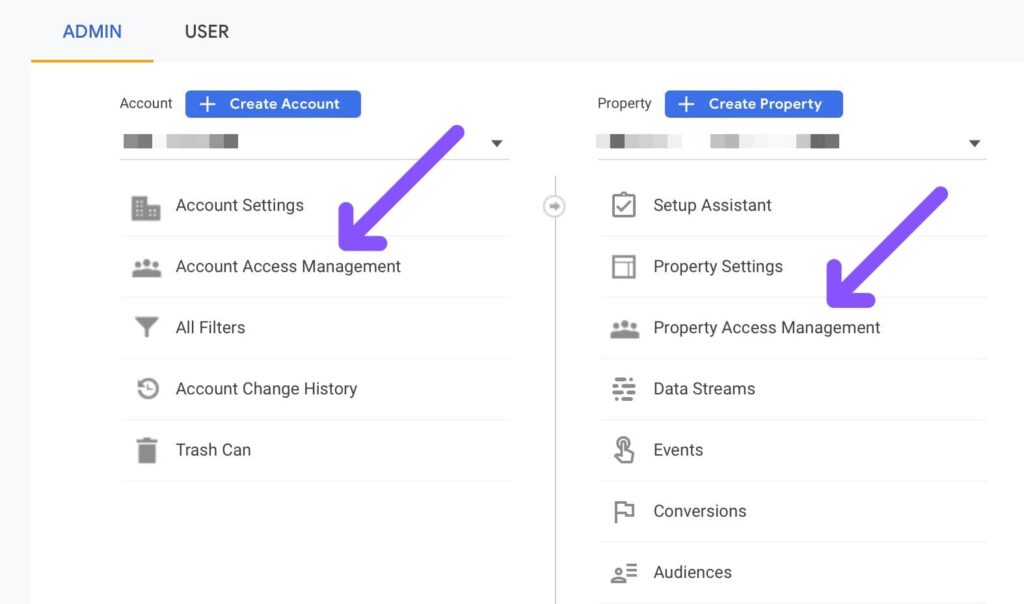
Google Analytics 4 (GA4) has become the standard analytics platform for anyone who wants to understand user behavior, improve marketing, and make data-driven decisions. But for many businesses, GA4 feels confusing, unfamiliar, and far more complex than the previous Universal Analytics.
If you’ve been asking questions such as “Is Google Analytics free?”, “How do I make a Google Analytics account?”, or “How do I log in to Google Analytics?”, you’re not alone. And if you’re trying to actually use GA4 effectively to track performance, audiences, conversions, and content engagement, you need clarity and a structured approach.
This deep-dive guide breaks down everything you need to know about GA4, from setup to reporting, without the technical overwhelm.
What Makes GA4 Different From Universal Analytics?
Before learning how to use GA4 effectively, it’s important to understand how it works.
GA4 is built on a completely different measurement model than Universal Analytics. Instead of focusing on sessions and pageviews as the foundation of analytics, GA4 is centered around events — every action a user takes is recorded as an event.
Key differences include:
- Event-based tracking: Everything is an event (clicks, scrolls, pageviews, video plays).
- Cross-platform tracking: GA4 can combine website and app data into one unified view.
- Privacy-focused tracking: GA4 works with or without cookies, making it future-ready.
- Predictive insights: Uses machine learning for churn probability, revenue prediction, and audience forecasting.
- Flexible reporting: Users can build custom reports, funnels, and segment explorations.
This makes GA4 far more powerful — but also more complex — than Universal Analytics, which is why many marketers struggle initially.
Is Google Analytics Free?
Yes. Google Analytics, including GA4, is completely free to use for websites and apps.
Most businesses only need the free version. The paid enterprise version, Google Analytics 360, is designed for corporations with extremely high data volumes or advanced data governance needs.
For small businesses, creators, publishers, agencies, and eCommerce stores, the free version of GA4 offers more than enough power.
How to Create a Google Analytics Account (Step-by-Step)
If you don’t have an account yet, you’ll need to create one before using GA4. Here’s how to make a Google Analytics account from scratch.
Step 1: Google Analytics Login
Go to the Google Analytics homepage and click Sign In. If you already have a Google account, log in. Otherwise, create a new Google account.
Step 2: Create a New Analytics Account
Once inside the dashboard:
- Click Admin.
- Select Create Account.
- Name your account (usually your business name).
- Configure data-sharing settings as needed.
Step 3: Create a GA4 Property
In the account setup:
- Click Create Property.
- Enter your website name and reporting time zone.
- Select industry and business size.
- Enable GA4 as the default property type.
Step 4: Set Up Data Stream
GA4 uses “data streams” to collect information.
Choose one:
- Web
- iOS app
- Android app
Enter your website URL and name your data stream.
Step 5: Install GA4 Tag
You can add the GA4 tracking tag using:
- Google Tag Manager
- Global site tag (gtag.js)
- CMS integrations like WordPress, Shopify, Wix, Webflow, etc.
Once your tag is installed, GA4 will begin collecting data.
How to Use GA4 Effectively
Now that your account is ready, it’s time to maximize the platform. Below are the most essential GA4 features every marketer should understand and use.
-
Understand the GA4 Interface
GA4 organizes reports differently. The main left-hand menu includes:
- Reports
- Explore
- Advertising
- Configure
- Admin
Here is what each section does:
Reports
This section includes traffic summaries, user acquisition, engagement, monetization, demographics, and tech reports.
Explore
This is where you create custom explorations such as:
- Funnel analysis
- Path exploration
- Segment comparisons
- User lifetime value
- Cohort analysis
Advertising
If you run paid ads, GA4 connects performance with conversions and attribution models.
Configure
Use this to set up:
- Events
- Conversions
- Audiences
- Custom dimensions
- Custom metrics
Understanding these areas will help you navigate data quickly.
- Set Up Accurate Conversion Tracking
GA4 tracks basic events automatically, such as:
- page_view
- scroll
- session_start
- click
- file_download
- video_start, video_progress, video_complete
But conversions need to be defined manually.
How to mark an event as a conversion:
- Go to Configure.
- Click Events.
- Turn on the toggle next to any event.
You can also create custom events, such as:
- Form submissions
- Button clicks
- Checkout completed
- Add to cart
- Lead captured
Accurate conversion tracking is the backbone of using GA4 effectively.
-
Use Exploration Reports for Deeper Insights
The Explore section is the most powerful part of GA4.
Key explorations to use:
Funnel Exploration
Understand where users drop off in your customer journey.
Path Exploration
See the sequence of actions users take after landing on your site.
Segment Overlap
Compare groups like:
- Mobile vs. desktop
- Organic vs. paid traffic
- New users vs. returning users
User Lifetime Analysis
View customer value over time.
This is powerful for eCommerce, SaaS, and membership-based businesses.
-
Analyze User Acquisition and Behavior
Use the Acquisition report to identify:
- Best-performing channels
- Sources with highest conversion rates
- Traffic sources that retain users over time
Key questions to answer:
- Which channel brings the highest-quality users?
- What type of content attracts organic traffic?
- Is paid traffic converting profitably?
The Engagement section shows:
- Average engagement time
- Most viewed pages
- Events triggered
- User stickiness
High engagement signals strong content performance.
- Create Audiences for Remarketing and Personalization
GA4 allows you to build audiences based on:
- Behavior
- Geography
- Device
- Traffic source
- Engagement levels
- Conversion activity
Examples:
- Users who viewed product pages but didn’t purchase
- Visitors who added items to cart but did not finish checkout
- New users within the last 7 days
- Highly engaged readers
- Returning customers
These audiences can sync directly with Google Ads for smart remarketing.
-
Set Up Custom Dashboards and Reports
To use GA4 effectively, you should build custom dashboards that suit your business model.
Examples include:
- SEO performance dashboard
- Conversion rate dashboard
- eCommerce performance dashboard
- Content engagement dashboard
- Lead generation dashboard
GA4’s custom reporting tools allow you to remove clutter and focus on what matters.
-
Integrate GA4 With Google Tools
To unlock the platform’s full potential, integrate GA4 with:
- Google Search Console
- Google Tag Manager
- Google Ads
- BigQuery
- Data Studio (Looker Studio)
This creates a complete analytics and attribution ecosystem.
-
Use Predictive Metrics for Growth Decisions
GA4 offers predictive metrics such as:
- Purchase probability
- Churn probability
- Revenue prediction
These help you identify:
- Users likely to convert
- Users at risk of dropping off
- High-value audience segments
Predictive analytics allow you to refine campaigns and budgets more intelligently.
-
Build Effective Attribution Models
GA4 includes several attribution models:
- Last click
- First click
- Linear
- Time decay
- Position-based
- Data-driven
Using attribution wisely helps answer questions like:
- Which channel actually drives conversions?
- Where should we increase advertising spend?
- Are our top-of-funnel efforts paying off?
Understanding attribution is essential for making informed marketing decisions.
Common GA4 Mistakes to Avoid
To ensure accurate reporting, avoid these errors:
- Not setting up conversion tracking properly
- Relying only on default events
- Ignoring cross-device or cross-platform data
- Using last-click attribution exclusively
- Failing to connect Google Ads
- Not building custom reports
- Ignoring retention and lifetime metrics
- Failing to validate data after setup
Avoiding these mistakes ensures you get clean, actionable data.
Final Thoughts: GA4 Is Powerful, But Only If Used Correctly
GA4 gives businesses more flexibility and deeper insights than any previous version of Google Analytics. The challenge is learning how to use it correctly.
When you set up events, define conversions, track audiences, build custom dashboards, explore user behavior, and integrate with other Google tools, GA4 becomes a strategic asset — not just a reporting tool.
The businesses that adapt now will be far ahead in the next era of data-driven marketing.